
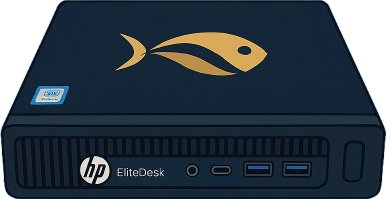
Box Contents
- ✓ Dorsium validation computer
- ✓ Power cable
- ✓ QR code sticker
IMPORTANT - FIRST STEP!
- DO NOT TURN ON THE DEVICE until the Dorsium mobile app is installed
- DO NOT TURN ON THE DEVICE until you are HOME on your own network
Why? The device can only be started for the first time from a home network. The mobile application is required to scan the QR code.
Setup
1. Connect the Network Cable
Modem/Router → RJ-45 cable → Dorsium device
- Plug the network cable into one of your router's free ports
- Plug the other end into the LAN port on the back of the Dorsium device
WIFI DOES NOT WORK - only wired internet!
2. Connect the Power Cable
- Connect the power cable to the back of the device
- Plug it into the outlet
3. Power On
- No need to power on the device (if the mentioned cables are already connected, it will start automatically)
WAIT 10 MINUTES - the device will start and configure itself automatically. DO NOT TURN OFF during this process!
4. Scan the QR Code
- Open the Dorsium mobile app on your phone
- Tap the "Add Device" button
- Scan the QR code from the side of the device (or from the box)
DONE! The device is now validating.
5. Check Operation
You can see the device status in the mobile app:
- ● Online = everything is working correctly
- ● Offline = check the cables or wait for the 10 minutes
Troubleshooting
- Do you have internet? Are other devices working on your home wifi?
- Is the network cable properly plugged in on both ends?
- Did you wait 10 minutes? The first startup takes time.
- Are you at home? Work/public wifi DOES NOT work!
- Try scanning the QR code again in better lighting.
- Check the network cable (is it plugged in on both ends?)
- Restart the device: turn off, wait 30 seconds, turn on
- Wait 5 minutes after restart
- If still offline → contact support
- Check the power cable (is it plugged in properly?)
- Is there power in the outlet? (try another device)
- Try a different outlet
- If nothing helps → contact support
Frequently Asked Questions
Anywhere with wired internet (RJ-45), power source, and ventilation. DO NOT place near heat sources (radiator, heater)!
Approximately 15-30W (like a laptop while charging)
Very quiet - about like a laptop fan
NO - it only works with wired (RJ-45) internet!
NO - the device and the Dorsium network are designed for 24/7 operation. Leave it on!
NO - the device updates itself automatically
YES - after the first startup, it can be used anywhere, just connect it to wired internet at the new location.
Summary
✓ Correct Order
- Install the Dorsium mobile app
- Start from home network
- Connect the network cable
- Turn ON and wait 10 minutes
- Scan the QR code in the app
✗ Don't Forget
- Don't turn off the device (24/7 operation)
- Don't use wifi (cable only)
- Don't start it elsewhere first
- Keep it in a ventilated area
- Check the status in the app
Support
Need help?
Email: hello@dorsium.com
Hours: 24/7
What to include in your support message:
- Device ID (DORS-20XX-XXXXXXXX)
- What's the problem? (briefly)
- What have you tried already?